 SyncScript Pro
Screenplay in.
Keywords out.
SyncScript Pro gives your assistant editor a head start. It transcribes the clips of an Event exported from Final Cut Pro and matches the dialogue against your screenplay. The assistant checks and completes the result by hand, and the checked keywords go back to Final Cut Pro.
A tool for your assistant editor, not a replacement.
SyncScript Pro matches your screenplay against the spoken words of your Final Cut Pro clips and prepares the keywords for you. It does not tag your footage fully automatically, and it is not meant to. An assistant editor reviews every result on the timeline before it goes into Final Cut Pro. What you get is the same checked result in roughly half the time. We don't know a faster way to do it, and we think a result that a person has checked is the only one worth cutting with.
Four steps
From an exported Event and a script PDF to keywords in Final Cut Pro.
Transcribe the Event
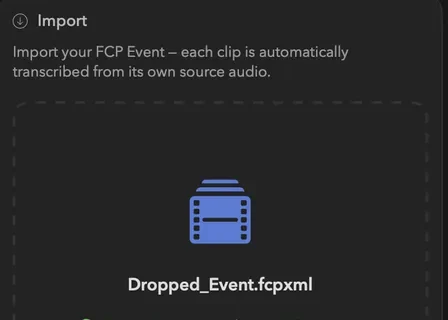
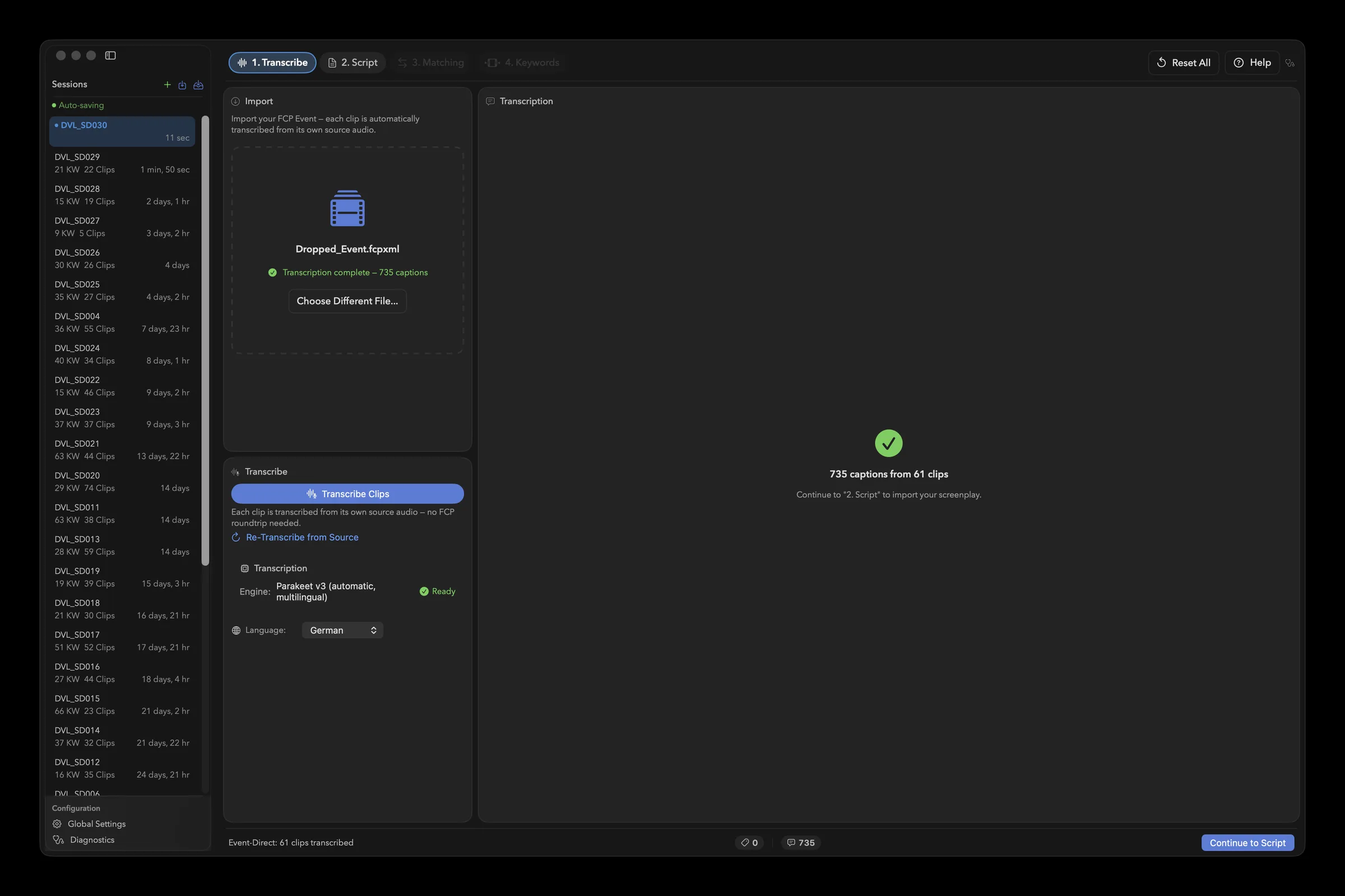
Export one Event from Final Cut Pro as FCPXML and drop it on page 1. Transcribe. Click Transcribe Clips; the first run downloads the speech model.
Import the script
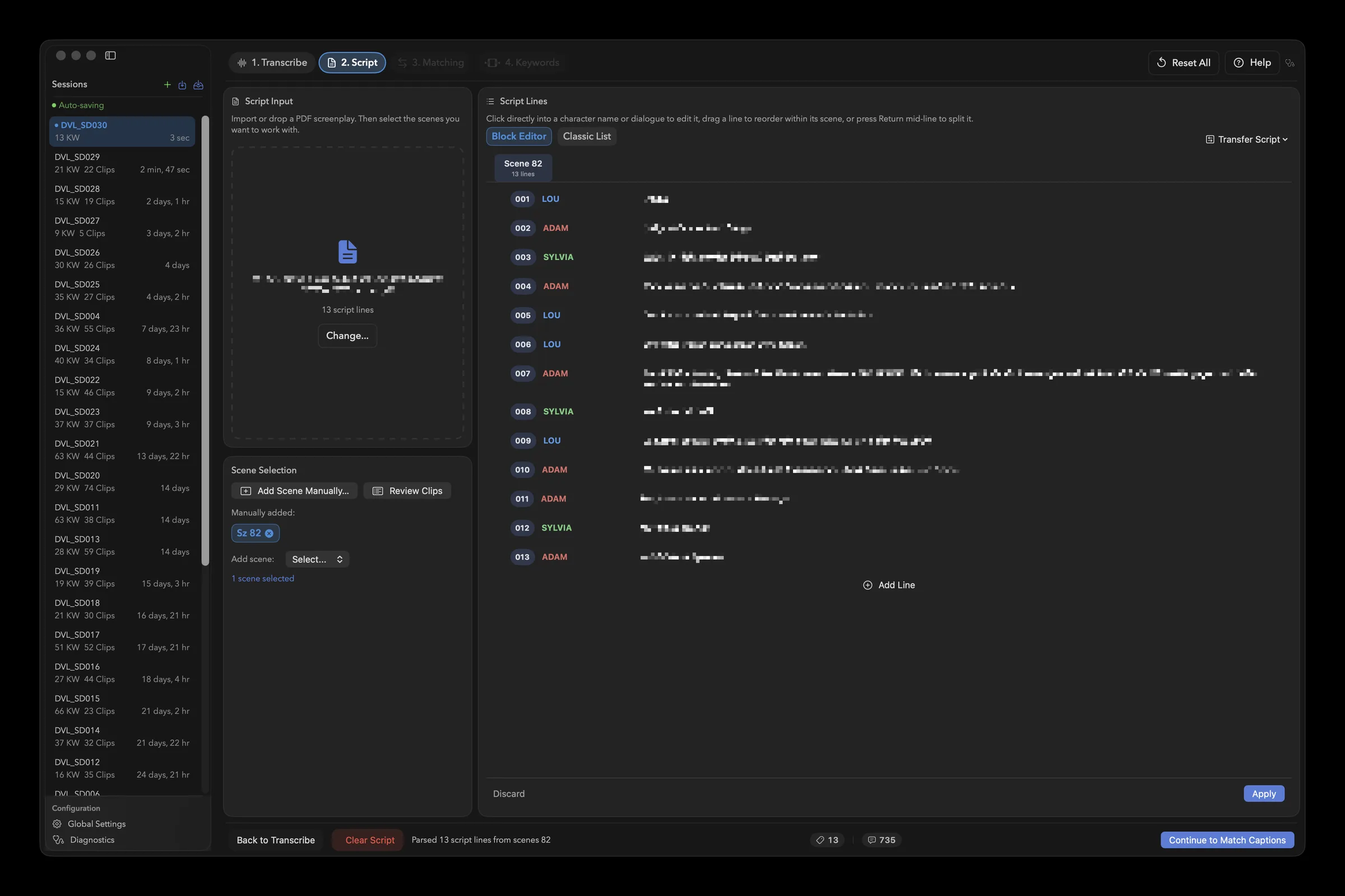
On page 2. Script, drop the screenplay PDF and select the scenes you shot. Edit the lines in the Block Editor or the Classic List.
Match and check
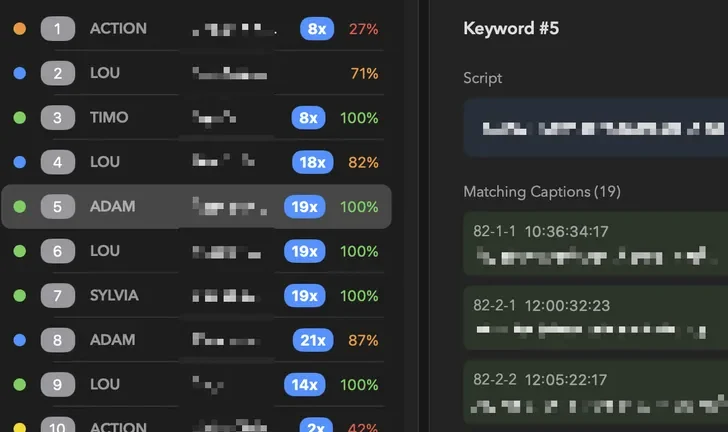
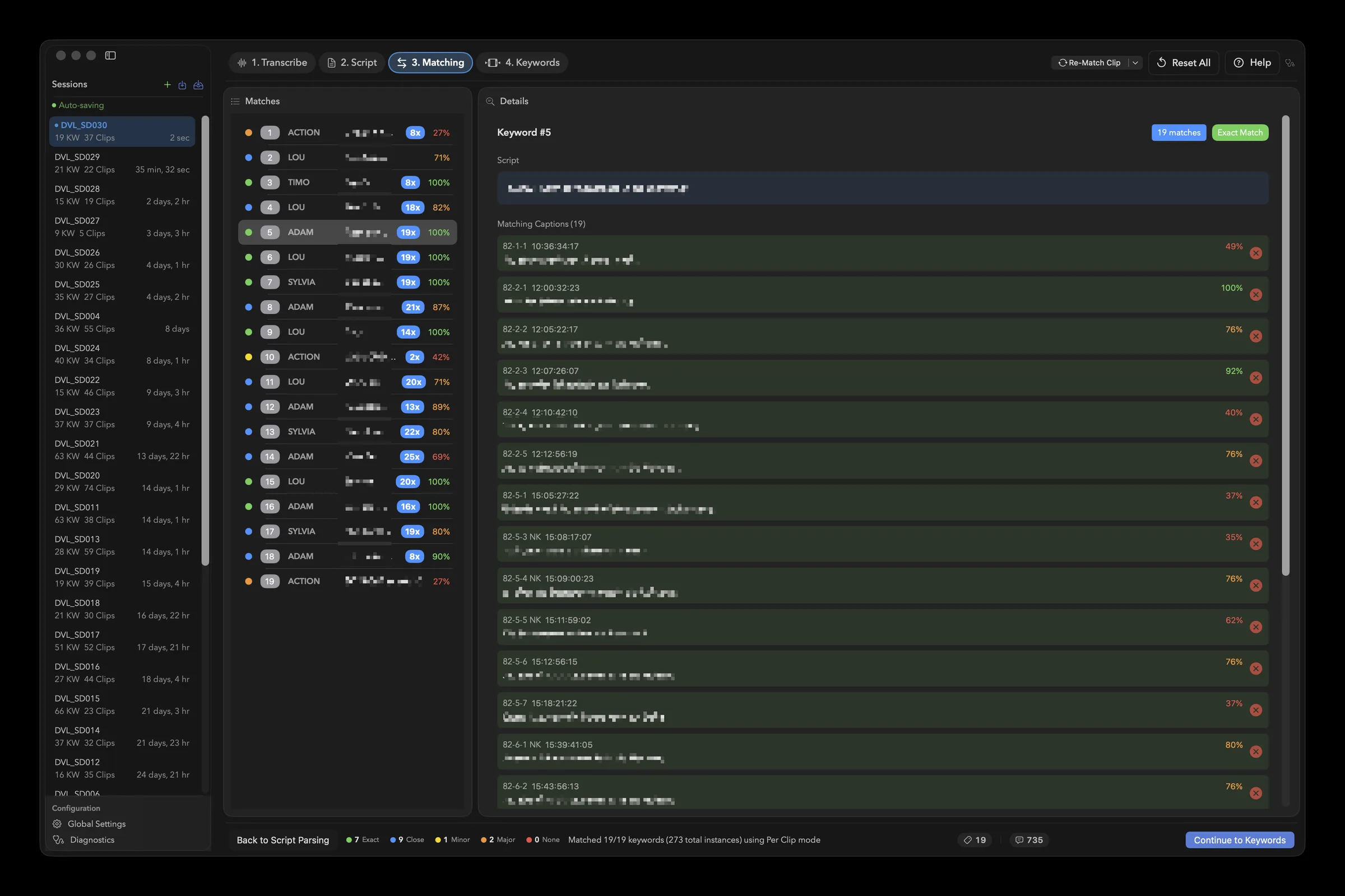
On page 3. Matching, click Start Matching. Fix lines without a caption with Assign Caption Manually.
Review and export
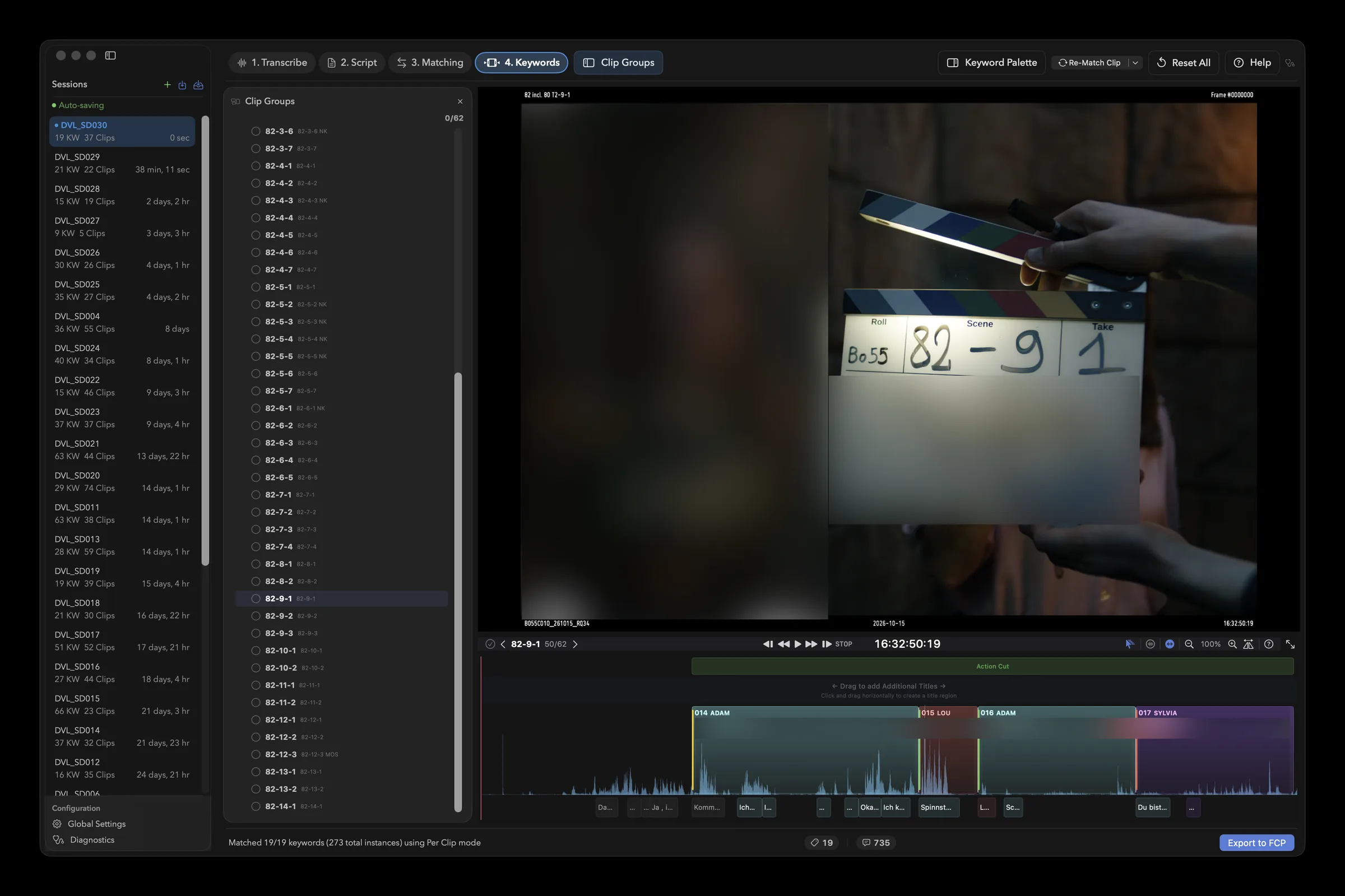
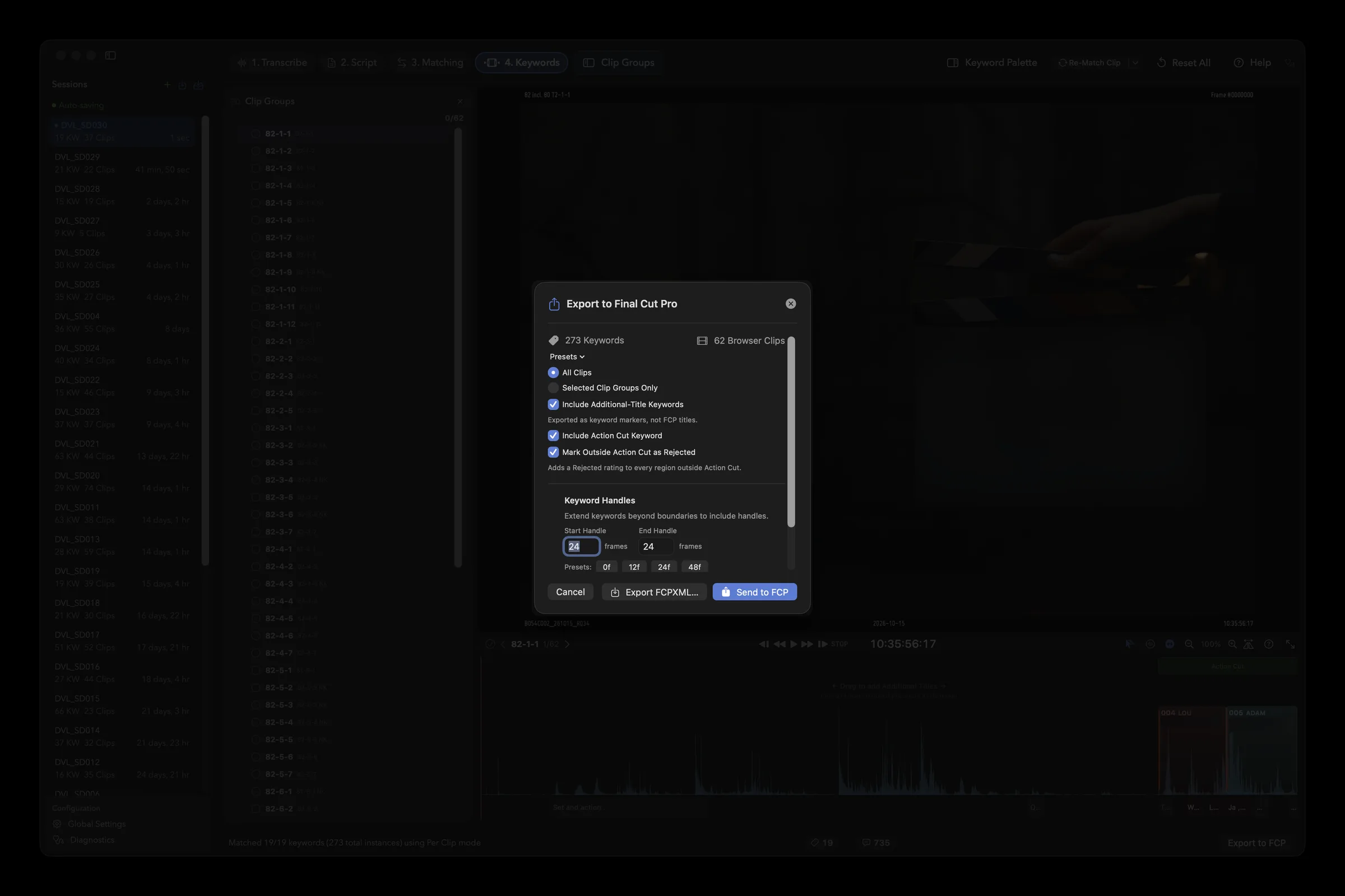
On page 4. Keywords, move, trim and replace keywords. Then choose Export to Final Cut Pro… and click Send to FCP.
In the app
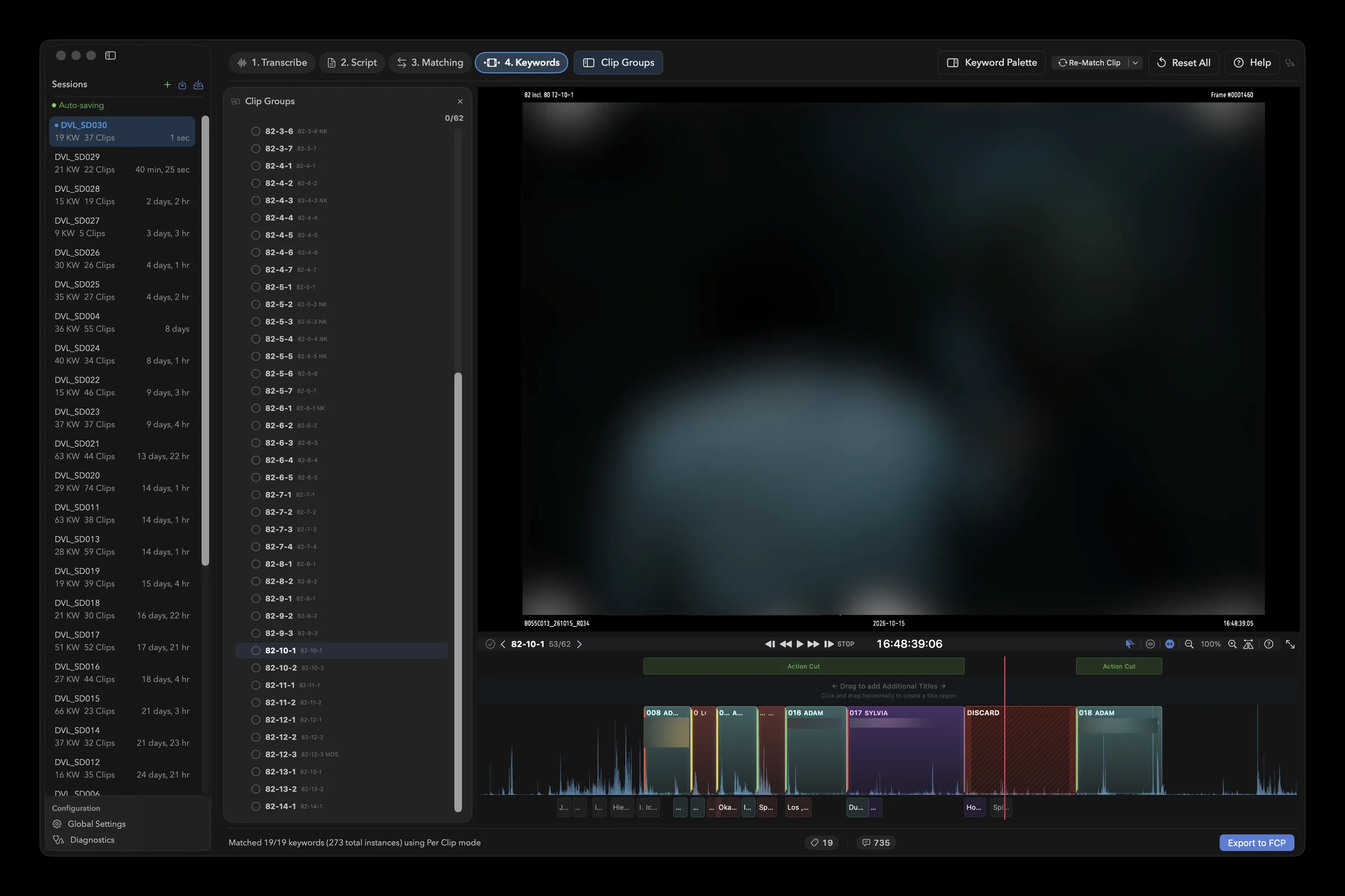
Real screens from a shoot day. Script text is blurred.
What's inside
What the current version (1.2.86) actually does.
Transcription on your Mac
Parakeet v3 transcribes each take once, from its own source audio, in 25 European languages. The captions are shifted to every camera angle and to the multicam clip of that take. Clips without an audio track are skipped. Cancel a run and the finished clips stay cached.
Script import and editing
Drop a screenplay PDF with a text layer and pick the scenes you shot. The Block Editor (the default) and the Classic List let you edit, split and merge lines. Add Scene Manually covers a scene the import missed.
Matching you can read
Each script line is matched against the captions of its own scene and labeled Exact Match, Close Match, Minor Difference, Major Difference or No Match, with a similarity percentage. Assign Caption Manually fixes a line that found nothing.
Scene Check and aliases
Scene Check lists every clip with its scene and flags clips without scene metadata. Also Use for Clips of Scene… lets the lines of one scene serve the clips of another.
Timeline editor
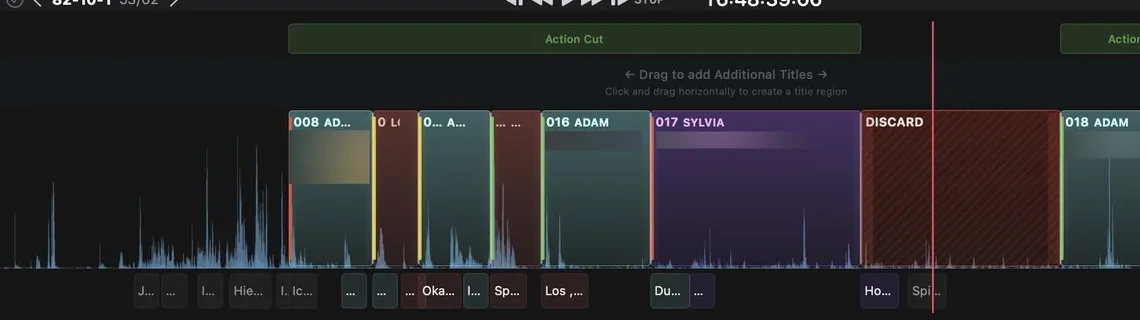
One clip at a time, with video, waveform, keyword blocks and captions. Drag to move or trim, hold Option while dragging to duplicate. Magnetic snapping is on by default; hold Shift to ripple the blocks after it.
Action Cut
Set In and Out with I and O at the playhead. Everything outside becomes DISCARD and its dialogue is not exported. The export can also mark that range as Rejected.
Export: keywords only
Writes one keyword marker per dialogue line into a new Event named like your source Event plus " - SyncScript Pro", so it does not merge into the original. Keyword Handles extend the keywords by a number of frames; the presets set 0, 12, 24 or 48. Send to FCP hands the file to Final Cut Pro, Export FCPXML… saves it.
Optional local LLM check
Enable LLM Matching (Settings, tab LLM) lets a local Ollama model check matches a second time and drop captions it rejects. It is off by default and off again at every launch. You install Ollama and pull the model yourself, and it runs only when matching the whole session.
Additional titles
Add extra markers on their own lane, by dragging or with T. They are exported as ordinary keyword markers, not as Final Cut Pro titles.
Sessions
Your work is saved as sessions, automatically every five seconds once the script has lines. A session exports as a .syncscript folder; it stores media paths, not media.
Shortcuts
Rebind shortcuts in Settings, tab Shortcuts, and export or import them as JSON. J, K, L, the number keys and undo and redo are fixed.
Good to know
What you need, what it does not do, and what to watch for.
Requirements
- macOS 15.0 or later on Apple Silicon, and Final Cut Pro
- An Event exported as .fcpxml or .fcpxmld with sync clips and/or multicam clips; the source media must be reachable on disk
- A screenplay PDF with a text layer
- Internet for the first transcription (speech model, about 1.5 GB) and for the license check
- Free trial; an email address is required at first launch and is sent with the license check
What it does not do
- No text recognition (OCR): a scanned PDF yields no script lines, and no screenplay format other than PDF can be imported
- The export contains keywords only: no Final Cut Pro titles, captions or timeline, and projects in the Event are left out
- Only the first Event of a file is imported; a live Final Cut Pro library is not read
- 25 European languages; Chinese, Japanese and Korean are not available
- The dialogue parser is tuned for screenplays in German: scene headings such as INNEN, AUSSEN, INT. and EXT. are recognized in capitals, and narrator cues are not imported
Worth knowing
- Nothing changes in Final Cut Pro until you export. Send to FCP reports the handoff, not the finished import: Final Cut Pro then asks which library to import into.
- Importing a new Event clears the transcription, captions and matches of the session. Matching again discards the manual keyword edits it covers, after asking you first.
- Reset Everything... in the File menu clears transcription, script, keywords, matches and titles, and cannot be undone.
- Transcription, matching and editing run on your Mac. The app contacts api.malibureview.app (license, updates, feedback) and huggingface.co (speech model), and localhost only if you enable the local LLM.
- Feedback and diagnostics are sent only when you click send. A diagnostics ticket contains script dialogue, clip names and media references.
Download SyncScript Pro
Version 1.2.86 · macOS 15 or later · Apple Silicon.